ImageSelectionModule
Auto-imported: YES (if ImageField is present in quill_options)
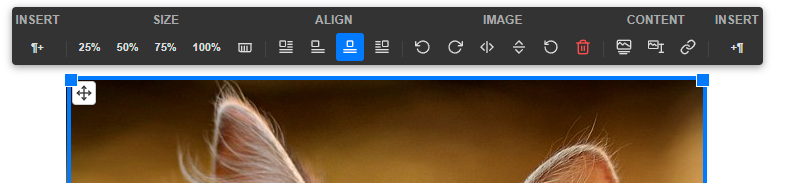
The ImageSelectionModule provides an interactive way to manage images within the editor. It adds a selection overlay with resize handles and a dedicated toolbar for quick actions.
This module is automatically enabled when the ImageField is used. If you don't use the ImageField but still want the module, you must add it manually to the modules option.
Features
- Resize Handles: Drag corners to resize images proportionally.
- Quick Alignment: Buttons for left (wrapped), left (block), center, and right alignments.
- Preset Sizes: Quickly set width to 25%, 50%, 75%, or 100%.
- Custom Size: Input exact width in pixels or percentage.
- Paragraph Insertion: Buttons to quickly insert an empty paragraph before or after the image.
- Image Transformation: Rotate (90° steps) and flip (horizontal/vertical) images.
- Metadata Editing:
- Captions: Add and edit image captions (requires
ImageFigureblot). - Alt Text: Edit the alternative text for accessibility.
- Links: Wrap images in a link.
- Link Target: Toggle
target="_blank"for image links.
- Captions: Add and edit image captions (requires
- Reset: Restore the image to its original state.
- Delete: Quickly remove the image and its figure from the editor.
Options
| Option | Type | Default | Description |
|---|---|---|---|
borderColor | string | '#007bff' | Color of the selection border and handles. |
borderWidth | string | '4px' | Width of the selection border. |
buttonBeforeLabel | string | '¶+' | Label for the "insert paragraph before" button. |
buttonAfterLabel | string | '+¶' | Label for the "insert paragraph after" button. |
buttonBeforeTitle | string | 'Insert a paragraph before' | Tooltip for the "before" button. |
buttonAfterTitle | string | 'Insert a paragraph after' | Tooltip for the "after" button. |
alignLabels | array | See below | Custom labels for alignment tooltips. |
rotateLeftTitle | string | 'Rotate left' | Tooltip for the rotate left button. |
rotateRightTitle | string | 'Rotate right' | Tooltip for the rotate right button. |
flipHorizontalTitle | string | 'Flip horizontal' | Tooltip for the flip horizontal button. |
flipVerticalTitle | string | 'Flip vertical' | Tooltip for the flip vertical button. |
resetTitle | string | 'Reset image' | Tooltip for the reset button. |
deleteTitle | string | 'Delete image' | Tooltip for the delete button. |
linkTitle | string | 'Edit link' | Tooltip for the link button. |
linkTargetTitle | string | 'Open in new tab' | Tooltip for the link target toggle. |
captionBackgroundColor | string | 'rgba(51, 51, 51, 0.6)' | Background color of the caption overlay. |
sectionLabels | array | See below | Small labels displayed above toolbar sections. To disable, pass an empty array []. |
alignLabels default values
php
'alignLabels' => [
    'left' => 'Left (wrapped)',
    'leftBlock' => 'Left (no wrap)',
    'center' => 'Align center',
    'right' => 'Right (wrapped)',
]
sectionLabels default values
php
'sectionLabels' => [
    'size' => 'Size',
    'align' => 'Align',
    'image' => 'Image',
    'meta' => 'Content',
    'insert' => 'Insert',
]
Usage example
Although it's usually auto-imported, you can manually configure it with custom options:
php
use Ehyiah\QuillJsBundle\DTO\Modules\ImageSelectionModule;

// ...

'modules' => [
    new ImageSelectionModule([
        'borderColor' => '#ff0000',
        'buttonBeforeLabel' => 'Insert Before',
        'alignLabels' => [
            'center' => 'Centrer l'image',
        ],
    ]),
],
Using Legacy ResizeModule
If you prefer the old image resizing behavior, you can disable ImageSelectionModule and enable ResizeModule instead:

php
use Ehyiah\QuillJsBundle\DTO\Modules\ImageSelectionModule;
use Ehyiah\QuillJsBundle\DTO\Modules\ResizeModule;

// ...

'modules' => [
    new ImageSelectionModule(['options' => false]), // Disable the new module
    new ResizeModule(), // Enable the old one
],